Repository navigation
Is there a way to run debugpy from the terminal without manually launching the client? #25842

Replies: 5 comments

|
You can avoid manually using the Run and Debug UI, but you still need a debugger client to connect to the debugpy server. One practical approach is to start the debugpy server from the terminal and then trigger the VS Code debug configuration with a keyboard shortcut or a task/command. For example, keep your attach configuration in
After that, start the existing “Python Debugger: Remote Attach” configuration in VS Code. If you want this to feel like one action, you can combine the terminal command and the attach configuration with a VS Code task or compound workflow. The important part is that |
|
You can avoid manually using the Run and Debug UI, but you still need a debugger client to connect to the debugpy server. A practical workflow is:
If you want this to feel like one action, you can combine the terminal command and the attach step using a VS Code task or compound configuration. The important part is that |

|
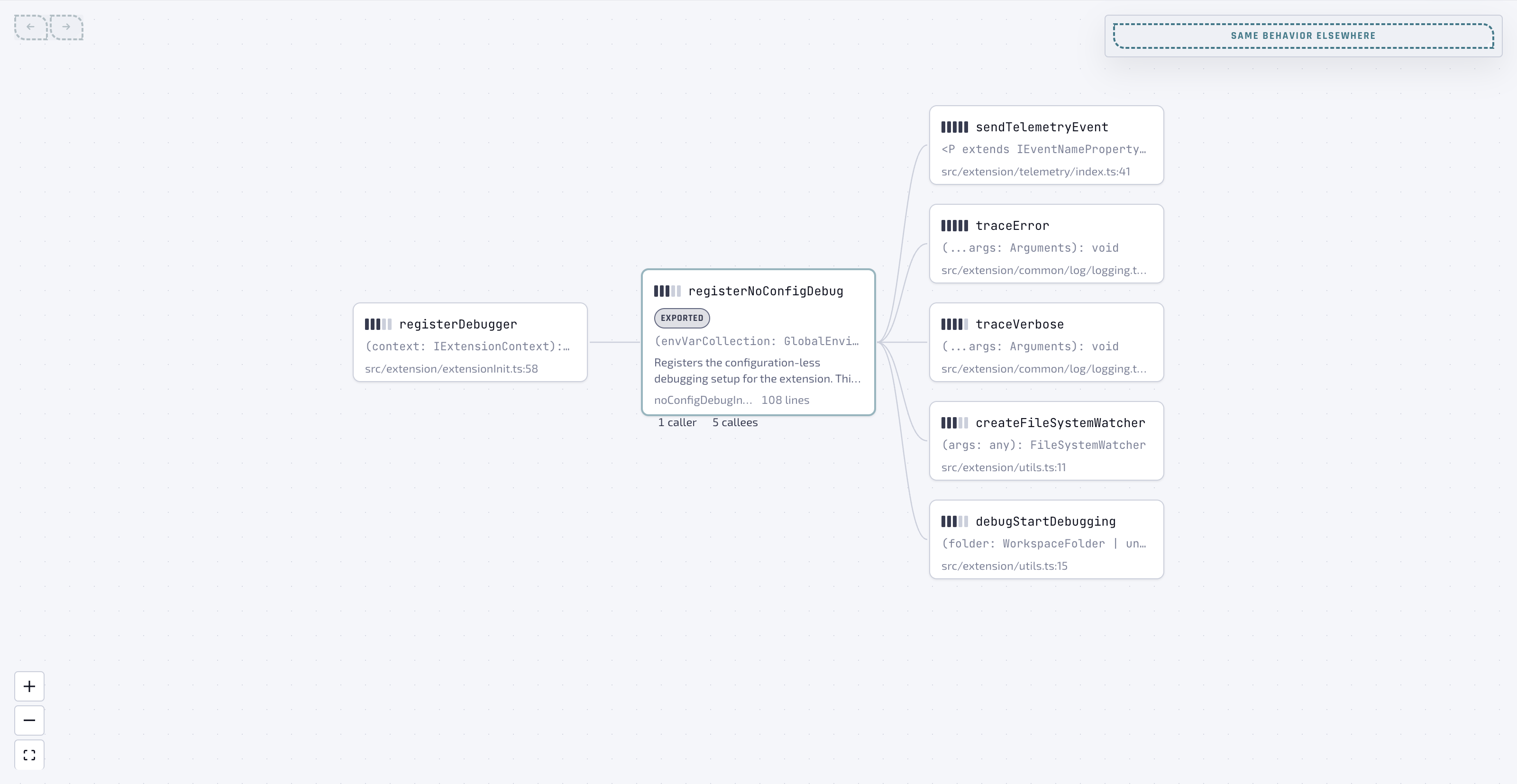
Hey Keto D. Zhang (@ketozhang), hope you're doing well! Thanks for laying out the three steps so clearly, it made the question really easy to follow. Yes, you can skip step 3. In a VS Code terminal, run Why it works The Python Debugger extension ships a "no config debugging" mode (since v2025.0.0, see the No Config Debugging wiki page):
One catch for your setup Since you installed debugpy yourself, your environment has its own python -m pip uninstall debugpy
debugpy -m pytestIf you'd rather keep debugpy installed, pointing it at the same endpoints file also works, even with your fixed port: DEBUGPY_ADAPTER_ENDPOINTS="$VSCODE_DEBUGPY_ADAPTER_ENDPOINTS" debugpy --listen 5678 --wait-for-client -m pytestA few other notes from the wiki worth knowing:
I checked this against the extension source at the commit linked above and reproduced the handshake locally with debugpy 1.8.21 (the version the extension bundles today): both commands wrote the endpoints file, a client attached on the reported port, and pytest ran to completion. Does this fit how you run pytest, or are you on a remote or WSL setup where the terminal behaves differently? And if anyone else in the thread has used this with other shells or containers, would love to hear how it went for you. |


Uh oh!
There was an error while loading. Please reload this page.
Uh oh!
There was an error while loading. Please reload this page.
To use debugpy in the terminal, you have to do three steps:
Prerequisite
{
    "version": "0.2.0",
    "configurations": [

        {
            "name": "Python Debugger: Remote Attach",
            "type": "debugpy",
            "request": "attach",
            "connect": {
                "host": "localhost",
                "port": 5678
            },
            "pathMappings": [
                {
                    "localRoot": "${workspaceFolder}",
                    "remoteRoot": "."
                }
            ]
        }
    ]
}
Launch your job with debugpy server in the terminal.
Launch the debugger from 'Run and Debug' menu for the debugpy client
Is there a way to skip step 3? This is a much more streamlined approach when wanting to run pytest in the terminal (I don't like using the Testing UI)
All reactions